How to Install a Sensi Lite Smart Thermostat
Installing a smart thermostat like the Sensi Lite can seem daunting, but with a few careful steps, you’ll have it up and running in no time.
Whether you’re replacing an old thermostat or installing a new one, understanding the basics helps ensure a smooth process.
Follow along and you’ll be controlling your home’s temperature smartly in just a little while.
Turn Off Power and Remove Your Old Thermostat
Turn off power to your heating and cooling system at the breaker panel or the switch near your furnace before starting. Confirm the power is off by attempting to run the system; if it doesn’t activate, the power is properly disconnected. Remove the old thermostat’s cover by pulling it straight toward you, pressing tabs, or using a screwdriver to release any latches. With the cover removed, check that the thermostat display remains dark; if it’s still lit, you haven’t cut the electricity properly and should shut off the power again before proceeding. For those also considering a window unit, a top window air conditioner can be a reliable alternative for cooling a single room. A small bedroom dehumidifier can help maintain comfortable humidity levels alongside your cooling setup.
Once confirmed off, photograph the wire connections and note the labels such as C, W1, R, Y, and G. Carefully detach the thermostat from its wall plate, taking care to prevent the wires from slipping back into the wall. Handle the wires gently to avoid damage. If needed, you can reinstall the old thermostat later to test your HVAC system separately. Note that the Sensi Lite does not require a C wire for power, so you may not need to connect that specific wire.
What You’ll Need to Install the Sensi Lite
To install your Sensi Lite thermostat, gather all necessary tools and materials beforehand to ensure a smooth process. You’ll need a small-tipped Phillips screwdriver, an optional medium-sized Phillips screwdriver, and a wire-cutter. A drill with a 3/16-inch bit may be required if you need wall anchors. Make sure to turn off the power at the breaker for safety. Have your 2.4 GHz Wi-Fi network name and password ready, along with the Sensi app installed on your smartphone. Keep the included AAA batteries and wire labels nearby. Inside the box, you’ll find the thermostat base, cover, screws, and anchors. For compatibility, identify your system type and check for a common wire, and take a photo of your existing wiring. Finally, have your home email address on hand to complete setup. Remember that dual transformer systems are incompatible with this device, so confirm yours is a single transformer system before proceeding.

PRECISION AND VERSATILITY: Klein Tools 4-in-1 Electronics Screwdriver with non-magnetic tips for precise work on electronics

Wide Range of Applications: Precision screwdriver can easily tighten or loosen small screws in some household everyday products: glasses, watches, laptops, tablets, cameras, jewelry, Android / iPhone, toys and other electronic products

【Precision screwdriver set】-- 40Pcs screwdriver set has 30 CRV screwdriver bits which are phillips PH000(+1.2) PH000(+1.5) PH00(+2.0) PH0(+3.0) PH1(+4.0), flathead -0.8 -1.2 -1.5 -2.5 -3.0, torx T1 T2 T3 T4 T5, torx security TR6 TR7 TR8 TR9 TR10 TR15 TR20, triwing Y000(Y0.6) Y00(Y1.5) Y0(Y2.5) Y1(Y3.0), pentalobe P2(0.8) P5(1.2) P6(1.5), MID 2.5, with a screwdriver handle, a double-ended spudger, a long spudger, 3 triangle spudgers, Tweezers, a cleaning brush and a suction cup with SIM card thimble.
Label Sensi Lite Wires Before Disconnecting Them
Label each Sensi Lite wire before disconnecting anything. After turning off the power and taking a photo of your wiring, use the provided sticker flags to label each wire one at a time. Focus on matching the labels to the terminal letters on your old thermostat, not the wire colors, because colors can be misleading. The app depends on these terminal letters for setup validation. Maintaining low humidity with a dehumidifier for centipedes can help prevent pests from entering your home. In water damage scenarios, selecting the right dehumidifier is critical for effective moisture removal and drying. Secure each wire while attaching its label to prevent it from slipping back into the wall cavity. Hold the wire steady during this process, and keep it accessible for when you disconnect it. Do not disconnect the last wire until all labels are secured and your reference photo is ready. If any labels don’t seem correct, follow the guidance provided within the app to ensure proper identification. Label wires sequentially for organized identification to avoid confusion during the installation process. For a similar installation, referencing a best ecobee review can help verify your wiring matches common terminal configurations.
Mount the Sensi Lite Base and Connect the Wires
To connect each labeled wire to its matching terminal on the base, start by identifying the correct connection point for each wire. Push the wire into the designated slot, making sure it is fully inserted. Then, use a screwdriver to tighten the screw, securing the wire in place. After tightening, give each wire a gentle tug to ensure the connection is firm and won’t easily come loose. Work on one wire at a time to prevent confusion or incorrect wiring. Remember, the Sensi Lite system only functions with single transformer setups, so double-check that you do not have two separate R wires. Proper terminal placement is crucial, as it allows the thermostat to configure itself correctly later. This straightforward connection process works with most HVAC systems, including heat pumps, gas-fired furnaces, and air conditioners, so you can proceed without worrying about specialized equipment. Regardless of your HVAC system, keeping your home’s air handling components clean—like inspecting for dirty humidifier filter signs—can help maintain overall system efficiency. If excess moisture is a concern in your apartment, you may want to compare the best dehumidifier for apartment options to ensure optimal humidity levels. Before starting, ensure the power is turned off at the breaker to prevent electrical shock.

★Makes one wire works like two

Designed exclusively for Sensi Touch 2 Wi-Fi Thermostat and Sensi Lite.

Designed exclusively for Sensi Touch 2 Wi-Fi Thermostat and Sensi Lite.
Attach Thermostat, Insert Batteries, Restore Power
Insert the two AAA batteries into the back of the thermostat display, making sure they are oriented correctly according to the polarity markings. This step powers the unit and allows the display to light up before you attach it to the base. Once the batteries are in place, check that they are seated properly, then align the display’s edges with the base, ensuring a snug fit. Press firmly until you hear a click, which indicates the cover is seated flush. Only after confirming the cover is secure do you restore power by flipping the circuit breaker or switch next to your furnace back on. The thermostat should now turn on and be ready for setup. If the cover does not sit evenly, remove it, reposition, and press again. No wiring adjustments are necessary during this step. The Sensi Lite runs on battery power if needed, eliminating the usual requirement for a common wire. Upgrading to a Smart Thermostat can also improve your home’s overall energy efficiency. Regularly using a home air quality monitor can help detect excess humidity that may promote mold growth. Routine cleaning of the thermostat’s exterior with a soft cloth prevents buildup and ensures reliable operation.

In The Box: 12-count pack of 1.5 volt AAA alkaline batteries with high energy density to deliver reliable performance

Triple AAA batteries bulk; 32-pack of Energizer Alkaline Power triple a. batteries

Triple AAA batteries bulk; 20-pack of Energizer Alkaline Power triple a. batteries
Connect the Sensi Lite to Wi-Fi via QR Code
The QR code you need to connect your Sensi Lite is typically located on the back of the thermostat cover or on the Get Started card inside the box. If the card is missing, you can find the QR code on the back of the thermostat itself. Open the Sensi app, tap the plus icon, then select either new installation or Wi‑Fi reconnection. Tap Next to reach the QR code scanning screen.
Ensure Bluetooth permissions are enabled for the app to scan the QR code properly. If your device lacks a camera, you can manually enter the PIN located below the QR code. To scan the code, point your phone’s camera at it; the app will automatically recognize it. After scanning, press and hold the Mode button on the thermostat for four seconds until the Setup and Wi‑Fi icons appear. The app then displays available Wi-Fi networks; choose yours, then enter your Wi‑Fi password twice to connect. For a similarly seamless setup experience, consider best HEPA air purifiers that also prioritize user-friendly connectivity and performance. This approach parallels how a run humidifier without filter relies on straightforward maintenance for reliable home comfort. Regularly cleaning the fan blades prevents dust buildup and ensures consistent airflow, just as maintaining your thermostat keeps it functioning reliably.
For troubleshooting QR code scanning, check that Bluetooth is turned on and confirm the QR code isn’t smudged, damaged, or obscured. Proper lighting can also improve camera focus for a smoother scan.

PRIVACY PROTECTION*: Sensi won’t sell your personal information to third parties

COMMON WIRE REQUIREMENTS: Designed to work without a C-wire in most homes, but for some systems, including heating only, cooling only, and heat pump systems, you’ll need a C-wire or other compatible power accessory

PRIORITIZED COMFORT: Control the temperature where you need it most
Finish Setup in the App or Troubleshoot QR Code Issues
After scanning the QR code and connecting your thermostat to Wi‑Fi, complete the setup in the Sensi app. Sign in or create an account using a valid email and password to enable remote access. Tap the plus icon, select your product, and choose either “New Installation” or the mounted option. Follow the prompts to confirm wiring and system type. Proceed through the remaining screens to save your configuration. Once registered, the app finalizes setup, unlocking full customization and remote control features. Emphasize the importance of completing the setup for full functionality so the thermostat operates like a standard device with remote access.
If the QR code does not scan successfully, manually enter the PIN located beneath it. Be sure to enable Bluetooth permission when prompted. If setup fails, restart the add-device process. Holding the Mode button for four seconds until the Setup and Wi‑Fi icons appear can help you retry the connection.
Fix Wi-Fi, Power, and Wiring Problems After Installation
If your thermostat won’t stay connected despite a smooth QR code scan and app setup, the issue is likely with Wi‑Fi, power, or wiring. Start troubleshooting Wi‑Fi by checking the thermostat’s display. A blank screen or flashing X indicates a connection problem. Make sure you are using a 2.4 GHz network, as 5 GHz networks are generally incompatible with thermostats. Power cycle your router by unplugging it for five to ten minutes, then wait one to five minutes for it to reconnect. If issues continue, try power cycling the thermostat: remove it from the wall plate for a few seconds, then reattach it to cut power and reset the connection. When in setup mode, the thermostat should display a Wi‑Fi icon and a circling bar, confirming it is responding. If the backlight remains off or the X continues flashing, reposition your router closer to the thermostat or change its 2.4 GHz channel to 1, 6, or 11 for better connectivity. For improved air movement throughout the room, consider using an air circulator instead of a standard fan for more consistent temperature sensing. For additional symptom relief ideas, you might also consider how cool mist humidifiers help ease coughing and breathing difficulties. For consistent heating performance, you might also consider how a window unit with heat pump can efficiently supplement your home’s temperature control.
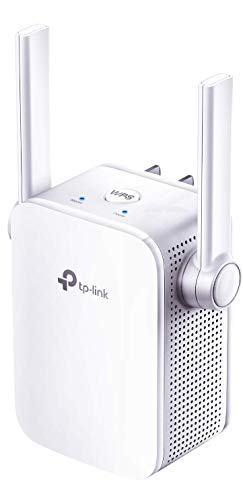
Extend WiFi Coverage - Internet WiFi coverage with 2 external antennas for reliable Wi-Fi, compatible with any WiFi Router, Gateway, Access Point

Extend WiFi Coverage - Boost Internet WiFi Coverage up to 800 Sq.ft - Compatible with any WiFi Router, Gateway, Access Point

Extend the range of your Wi Fi with the RE220, compatible with any router/ Gateway/ access point ( 2. 4GHz 300Mbps/ 5GHz 433Mbps )
Make Sure Your System Works With the Sensi Lite
Your system is compatible with the Sensi Lite if it is a single-stage gas, oil, electric, or heat pump system up to 2H/1C or 1H/2C. It does not support line voltage, millivolt, or electric baseboard heating. For supplemental heating needs, best space heaters can provide effective warmth when your main system is not running. For cough relief from dry air, a humidifier for cough can help add necessary moisture to the air.
Before installation, remove your old thermostat and inspect the wiring. If you see wire nuts or heavy gauge wires, your system is incompatible. During the compatibility check, enter wiring labels that match your system type.
Wiring requirements vary: conventional systems do not need a C-wire, but heat pump, heat-only, and cool-only setups do. If you have a heat-only or cool-only system without a C-wire, your Wi-Fi connection might drop after two hours. Keep your 2.4 GHz Wi-Fi network ready to ensure smooth setup and operation. For improving indoor comfort, consider that an air cleaner targets airborne particles while a humidifier manages moisture levels.