How to Change Your Old Thermostat to a Smart One
Thinking about swapping out your old thermostat for a smart one? The process isn’t too complicated, but you’ll need to check your system first.
Most smart thermostats require a 24V setup and a C-wire to stay powered.
Once you’ve confirmed everything, turning off the right breaker and using a voltage tester will keep you safe.
The rest of the steps guide you through disconnecting, labeling, and installing your new thermostat with confidence.
Is Your Thermostat Compatible With a Smart Model?
To determine if your HVAC system is compatible with a smart thermostat, start by checking the voltage. Most smart thermostats require a 24V system; they won’t work properly on 110V or 220V setups. Next, examine your wires. Look for terminal labels like R, W, Y, G, and C. The C-wire provides continuous power; if you see one, you’re good to go. If it’s missing, you might be able to convert an unused wire. To prevent mold and buildup, regularly clean your Honeywell tower fan with proper tools and a step-by-step method. For optimal cooling, you might also consider choosing one of the best window air conditioners to complement your smart thermostat. Consider using a bedroom dehumidifier to manage humidity levels and improve overall air quality.
Consider your equipment type. Single-stage systems are the simplest and most compatible with smart thermostats. Multi-stage systems or heat pumps can still work, but you should verify their staging limits and setup requirements. Always use manufacturer compatibility charts or online checkers from brands like ecobee or Sensi to confirm whether your system, wiring, and staging support the model you want. Remember, temperature sensors can improve thermostat accuracy, but they won’t fix any fundamental incompatibility with your furnace or HVAC system. Always double-check compatibility before making a purchase.

CONTROL: Connect to WiFi and control from anywhere using the First Alert app - Matter Certified and also compatible with Amazon Alexa, Google Assistant, Apple Home Kit

【Do a Simple Check】Please scan the QR code to do a check if vine thermostat is compatible with your home before purchase. A common wire (C-wire) is required for all vine thermostat
Turn Off the Right Breakers : Then Test for Power
Turning off the right breaker is essential before testing for power. First, locate the circuit breaker or service switch that supplies power to your furnace or air handler, not the thermostat itself. If the labels on the breaker panel are unclear or missing, test each breaker to determine which one controls the system. Remember, a subpanel can hide the correct circuit, so don’t rely solely on labels. After flipping the suspected breaker, verify whether the power is truly off. It is important to also check near the furnace for a switch resembling a standard light switch that may need to be turned off as well. For added safety, consider how a portable air conditioner might use a similar dedicated circuit in your vehicle, but this does not apply to your home system. For a home, choosing an air cleaner with a humidifier can improve indoor air quality while you upgrade your thermostat. A humidifier compatible with Vicks can also help maintain comfortable moisture levels during the installation process.
Use a non-contact voltage tester on the thermostat wires; if the tester beeps or lights up, the breaker you turned off is not the correct one, and power is still live. Additionally, change the thermostat setting by five degrees and wait a few minutes to see if the system responds. If it does, the power is still active, and you need to recheck the breaker. Confirming that everything is dead before proceeding is crucial to avoid shocks or shorts during repairs.
How to Remove Your Old Thermostat Without Losing Wires
To remove your old thermostat without losing wires, start by taking a photo of the terminal layout. This helps you remember the wire colors and terminal labels before disconnecting any wires. Label each wire with painter’s tape or wire labels, especially when the colors don’t match their functions. Carefully remove the thermostat face plate; it might pull straight off or require you to press a latch. Unlike gas-powered space heaters, smart thermostats do not pose a risk of carbon monoxide poisoning. With the base exposed, support the wires so they don’t slip back into the wall. Loosen the terminal screws or press the release tabs to free each wire, pulling gently to avoid damage. When unscrewing the base from the wall, hold the wire ends steady with one hand or use small vise grips. Make sure bare wire ends don’t drop into the wall cavity. If you are unsure which model to buy, consider reading reviews of the best ecobee to compare options. For cleaner indoor air alongside your new device, you might also look into HEPA air purifiers to improve overall home comfort. Controlled removal ensures you keep all wires organized and makes reconnecting your new thermostat easier. Turn off power at the breaker before starting to ensure safety while handling exposed wires.
No C-Wire? Here’s How to Fix It
If your new smart thermostat requires a C-wire but your old one didn’t, you have several practical options. A power extender kit, which costs around $20–$25, can be installed at your furnace’s control board. This device supplies continuous power to your thermostat without needing a dedicated C-wire, making it ideal for wireless sensors and alternative power setups. Using a transformer provides independent power from an outlet, ensuring continuous operation without modifying your existing wiring infrastructure. For fans that accumulate heavy dust, periodic disassembly allows you to clean the fan blades and cage thoroughly, keeping the motor from overworking. When selecting a power source, consider that cool air humidifiers generally consume less energy than warm air models, which can affect your overall home efficiency. Ensure the thermostat is correctly placed on an interior wall away from drafts and direct sunlight for accurate temperature readings.
Another solution involves repurposing an unused blue wire in your cable bundle. You simply connect this wire to the C terminal at both the furnace and thermostat ends. If you choose to use the G wire (typically controlling the fan), you can reassign it to the C connection, but keep in mind that this will disable independent fan control unless you jumper G to Y (the cooling wire).
The most straightforward approach is to run a new cable from your furnace to the wall-mounted thermostat. Whichever method you choose, always turn off power at the breaker before working on any wiring. Label all wires carefully, verify compatibility with your thermostat model, and double-check your connections to ensure safe and proper operation.

The Power Extender (PEK) is an easy, cost-effective solution for homes without a C or common wire.

Nest thermostats are designed to work without a C wire in most homes but for some systems, including heating-only, cooling-only, zone-controlled, and heat pump systems, you'll need a Nest Power Connector or C wire.

The C-Wire Adapter takes the wires from the thermostat and provides a bridge to the equipment so there is no need to run new wires to power the thermostat.
Mounting the New Thermostat Baseplate Correctly
Hold the new thermostat baseplate against the wall to verify its placement before drilling or inserting screws. Use a small spirit level to ensure it is perfectly straight. Consider the wall surface when mounting; drywall usually requires pilot holes and wall anchors to secure the screws properly. Choose an interior wall if possible for easier access and stability. Once aligned and leveled, mark the locations of the screw holes with a pencil. Drill your holes at these marks, then feed the labeled wires through the center opening of the baseplate. Secure the plate with the provided screws, tightening them firmly but avoiding overtightening to prevent damage. Check that the plate feels stable and does not shift when pressed. Confirm the levelness again before fully tightening the screws. If there are old marks or imperfections, a trim plate can cover them for a clean appearance. Ensure enough wall space and room for the new base plate before proceeding with wiring. Unlike a fan, a white noise machine produces consistent ambient sound without mechanical airflow, and a white noise machine often costs less to run over time. When finished, you will be ready to proceed with wiring. Proper mounting also matters for safety and efficiency, as a secure baseplate prevents stress on the wires and ensures the thermostat reads room temperature accurately, similar to how a space heater’s placement and stability affect its performance and heat distribution. For best results, the thermostat should be mounted away from drafts and moisture sources, much like selecting a dehumidifier that is properly sized for your apartment’s square footage.
Matching Old Wires to Your New Thermostat Terminals
When matching old wires to your new thermostat terminals, focus on the terminal labels rather than the wire colors. Wire colors are often unreliable and can vary widely, so relying on labels is your best bet. Typically, connect R (or R, RH, RC) to the R terminal, W (or W1) to the W terminal, G to G, Y (or Y1) to Y, and C to C. If your previous thermostat had separate RH and RC wires, match each to the corresponding terminal on the new thermostat. A jumper wire between R and RC is often present due to battery or power supply requirements. For comprehensive home automation, your smart thermostat should also be compatible with your existing HVAC system.
Before disconnecting any wires, document your current setup thoroughly. Take a clear photo of the wiring, and label each wire with painter’s tape as you remove it. For heat pump systems, the O or O/B terminal is important; if you find separate O and B wires, connect O to O/B and tape B off. If you’re unsure whether your system is conventional or heat pump, temporarily connect the ambiguous wire to W until you can verify. The C wire carries power for smart thermostats; handle it carefully and match it precisely to the C terminal label on your new thermostat. Understanding the filter replacement indicator on your smart thermostat can help you maintain optimal air quality, as these devices often integrate with air purifiers that use similar technology. For nasal congestion relief, adding a humidifier can also help ease breathing difficulties when adjusting your home environment.

★Makes one wire works like two

WHEN RELIABILITY MATTERS: The Lutron Smart Hub works without Wi-Fi, providing ultra-fast, reliable performance beyond a typical wifi switch for dependable smart lighting
The C-Wire Adapter takes the wires from the thermostat and provides a bridge to the equipment so there is no need to run new wires to power the thermostat.
Wiring Problems? Fix These Before Powering On
Most wiring problems stem from a few common, fixable issues, so check these before turning the power back on. First, gently tug each terminal screw—loose connections are a frequent failure point. Tighten any slack so the wire can’t pull free. Next, look for frayed, damaged, or corroded wires and replace them if needed. Don’t rely solely on wire color, as it can be misleading; use a multimeter to verify proper connections. Test the R wire against the C terminal; it should read about 24 volts. Miswiring is common, so double-check that the heating wire isn’t connected to the cooling terminal. Ensure that any wire used for a battery backup is correctly identified, as coin cell batteries typically back up settings rather than power the thermostat. Make sure all bare copper wires are secured under the contacts and that no exposed wire is visible. Only restore power after confirming that all connections are correct and firmly seated. For those who also have respiratory concerns, maintaining optimal humidity levels can help ease wheezing when using your new thermostat to control a whole-home humidifier. If you find the existing system struggles to keep you comfortable, consider a portable air conditioner as a supplemental cooling option for particularly warm rooms.
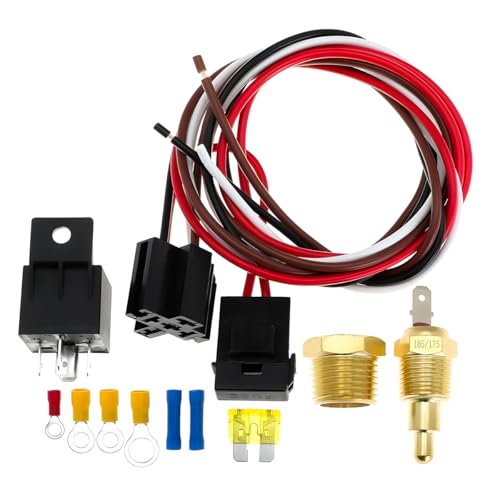
Product Specification: This car electric fan relay kit supports 40 amps of current at 12 volts. The thermostat switch features a 3/8-inch NPT pipe thread connection with a 1/2-inch adapter. Note: The thermostat must be threaded and grounded to the engine to function properly, and the engine must be grounded. If installing a high-profile fan, be sure to crimp or solder bigger wires to it since the 14AWG wires (15 amps) are not big enough for high amps draw.
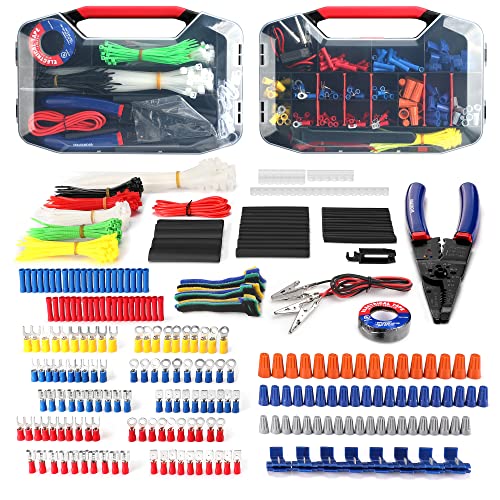
Assorted 582 electrical wire terminals and other accessories with transparent box for easy access

Fit for: 2 x 8 inch Fans, 2 x 10 Inch Fans, 2 x 12 Inch Fans, 2 x 14 Inch Fans, Single 8 Inch Fan, Single 10 Inch Fan,Single 12 Inch Fan, Single 14 Inch Fan, Single 16 Inch Fan (Two 16 inch fans, need 2 Relay Kits)
First Boot-Up: What Happens When You Restore Power
Immediately after restoring power, your smart thermostat will perform an automatic reboot. During this process, it typically displays a brand logo or startup screen while it stabilizes. Expect a brief delay—usually between 1 and 5 minutes—as the device reloads its operating state and saved schedules from internal memory. Before proceeding, you should confirm home power has been fully restored to ensure the thermostat has power.
Check that the display is not blank or stuck. You might see a display reset message if the unit has lost track of the time or entered a hold mode. It is normal for the clock to be incorrect after an outage; don’t panic. Wait at least 60 seconds before interacting with the thermostat. In many cases, it will automatically reconnect to Wi-Fi during this startup phase. However, you cannot control it via voice commands until the full startup is complete. If the screen remains blank after several minutes, this likely indicates a power delivery issue rather than a settings problem.
Connecting Your Smart Thermostat to Wi-Fi and the App
Once your thermostat is powered on and stable, you can connect it to your home’s Wi-Fi and the app. Make sure your device supports Wi-Fi and that you have the official app installed on your phone. Use a 2.4 GHz Wi-Fi network for initial pairing because 5 GHz networks often aren’t supported during setup. To enter pairing mode, hold down the designated button until the Wi-Fi icon begins flashing. Open the app, select “Add device,” and choose the appropriate thermostat category. Carefully input your Wi-Fi network name (SSID) and password. When the thermostat connects successfully, it will display a “connected” status. It’s important to check for and install any available firmware updates during setup; these updates fix bugs and improve performance. For better network security, use a strong and unique Wi-Fi password. Assign a location name to the thermostat within the app, and confirm that the thermostat appears on the home screen after the app registers the device to finalize the setup.
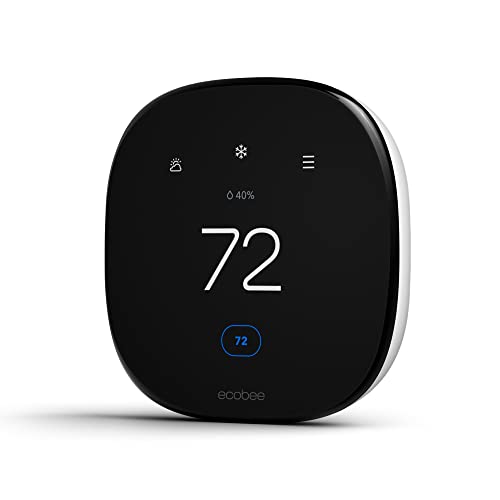
Saves you energy automatically — Save up to 26% per year on heating and cooling costs.* The Smart Thermostat Enhanced automatically adjusts your home’s temperature when you’re away or asleep, helping reduce energy use without sacrificing comfort.

Save up to 26% on your energy bills: ENERGY STAR certified. Automatically adjusts your temperature based on occupancy. Compared to a hold of 72°F

Specifically designed to work with ecobee Smart Thermostat Essential only. Does not work with other ecobee Smart Thermostat models
Testing Heating and Cooling to Confirm Everything Works
Start by testing both heating and cooling modes separately to confirm your system functions correctly. For heating, set your thermostat to Heat and raise the setpoint 5 to 10°F above the current room temperature. Listen for the furnace or heat pump to turn on, and feel the warm air emerging from the vents. Be aware that vent placement can influence airflow; a blocked vent might make it seem like the system isn’t working properly. For cooling, switch the thermostat to Cool and lower the setpoint the same amount. Verify that cool air comes from the vents and ensure the outdoor unit runs as expected. If your thermostat has a System Check feature, use it—it helps verify each mode separately and assists in thermostat calibration. Avoid changing multiple settings at once during testing. If testing reveals no activation, use a multimeter to measure voltage between R and Y or W terminals, as a reading of around 27V AC confirms proper power supply to the switching function. If either mode doesn’t activate or perform properly, recheck the wiring and power supply before troubleshooting the equipment itself. A successful test means your system is fully operational.