How to Install a Honeywell Smart Thermostat
If you’re wondering how to get your Honeywell smart thermostat up and running smoothly, you’re in the right place.
Installing a new thermostat might seem tricky at first, but with the right steps, you can do it yourself and start enjoying a smarter, more efficient home temperature.
By the end of this guide, you’ll know how to safely remove your old thermostat, connect the correct wires, and set up your new Honeywell device.
Keep reading for simple instructions and troubleshooting tips to ensure a seamless installation.
Turn Off Power at the Breaker Before Installing a Honeywell Smart Thermostat
Turning off the power at the breaker is essential before installing a Honeywell smart thermostat. Locate the breaker labeled HVAC, furnace, or the one controlling your heating and cooling system. Flip this breaker to the off position to ensure no electricity flows to the thermostat or the equipment.
After shutting off the breaker, verify that the power is truly disconnected. Do not rely solely on the thermostat display, as it may still be lit. Instead, adjust the thermostat’s setpoint by at least 5 degrees and wait about 5 minutes. If the system does not start—no airflow, no sounds—and the LED on the thermostat’s base plate remains dark, then it’s safe to proceed with installation. To help choose the right replacement, consider the cooling capacity requirements for the room size. Performing a circuit breaker inspection and reset ensures power is fully restored after completing the installation if the thermostat was unresponsive.

High use of the scheduling feature of the T5 thermostat saved customers between 8 and 16% on heating and cooling bills. Dollar savings range based on nationwide average...
Remove the Old Thermostat and Label Every Wire by Terminal
Before disconnecting any wires, turn off the power to the thermostat. Remove the faceplate carefully using the appropriate release method, such as pull-off tabs or screws. Keep the wall plate on to maintain access until all wiring is documented.
Photograph the wiring layout for reference before disconnecting anything. Never rely solely on wire colors, as they can vary; always identify wires by their terminal letters. Use a label or tape to mark each wire with its corresponding terminal—such as R, W, or G—before loosening the screw. Label one wire at a time to prevent confusion. Be sure to also turn off the linked furnace at the breaker to ensure complete electrical safety. It is also wise to check the target humidity level in your bedroom to avoid excessive dryness while working. When choosing a location for your thermostat, consider that a pedestal fan can help circulate air more effectively in open areas than a tower unit.
Gently disconnect each wire from its terminal once it is properly labeled. To prevent wires from slipping back into the wall, wrap each labeled wire around a pencil or similar writing instrument. For additional comfort while working, consider using a humidifier for dry throat to keep the air moist. Only after all wires are labeled and disconnected should you remove the old wall plate, ensuring clear and safe access for installing the new thermostat.
No C-Wire? Use the Honeywell Power Adapter or C-Wire Kit
If you don’t have a C-wire, your Honeywell Wi-Fi thermostat needs an alternative power source. The simplest solution is the Honeywell C-Wire Power Adapter, a compact device that provides a virtual common wire directly at your HVAC equipment. It connects using push terminals, making setup tool-free and avoiding the need to run new wiring through your walls. Smart thermostats often require a constant power connection to maintain their advanced features like Wi-Fi and scheduling. For large rooms, some high-output space heaters provide a similar need for steady, reliable operation. Properly managing indoor humidity levels can also help protect your HVAC system from excess strain.
Before installing the adapter, check for an unused wire behind your old thermostat. If this wire reaches the C terminal at your furnace, you can repurpose it instead of purchasing the adapter. If no suitable wire is available, the power adapter ensures steady power to your smart thermostat. Remember to turn off the power at the breaker before making any electrical connections to stay safe. Confirm power supply and thermostat wiring indoors before proceeding to verify that the adapter is supplying correct voltage.

The C-Wire Adapter takes the wires from the thermostat and provides a bridge to the equipment so there is no need to run new wires to power the thermostat.
The C-Wire Adapter takes the wires from the thermostat and provides a bridge to the equipment so there is no need to run new wires to power the thermostat.

WIDE COMPATIBILITY: US power cable powers popular smart thermostats including Nest 1st/2nd, Ecobee, Honeywell, and Sensi, as well as doorbells including Ring Video Doorbell, Ring Video Doorbell 2, Ring Video Doorbell Pro, Nest, and Skybell, along with other devices that require constant AC 24 volt power for operation, enabling safe charging of your devices
Mount the New Wall Plate Level and Secure With Anchors
Begin by placing the Honeywell UWP on the wall and using a level to ensure it is perfectly straight. Mark the locations for the mounting holes with a pencil once the plate is level. This step is crucial because a crooked wall plate can compromise both the appearance and the alignment of your thermostat.
Next, drill pilot holes at your marked points. Use a 3/16-inch drill bit for drywall or a 7/32-inch bit for plaster, depending on your wall type. Insert the supplied anchors into the holes until they are flush with the wall surface. Anchors prevent the plate from pulling loose, especially in soft drywall or plaster, ensuring a secure fit.
Finally, position the UWP over the anchors and drive in the three included #6 1-1/2-inch screws. Tighten just enough for the plate to sit firmly without forcing it, as overtightening can bend the base or compromise mounting stability. As you route the wires through the opening, leave at least 1/4 inch exposed to prevent pinching or damage. Confirm that the plate remains level and secure before closing the cover. Document wiring from the existing setup to ensure accurate reconnection of G, Y, R, W, and C wires to their matching terminals on the new base plate.
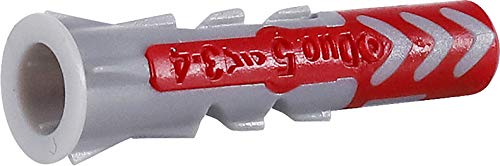
ONE ANCHOR FOR EVERY WALL: This dual-action nylon anchor works in both solid and hollow walls, expanding to grip along the full length of the screw in solid material, and folding and knotting behind the surface to lock tight in hollow material.


This whole kit is suitable for every where every room in your house from bathroom rack, kitchen rack, living-room rack and fixtures and this one kit in your hand can do every type of install indoor and outdoor advertising boards glass sign | acrylic sign | acrylic plate | acrylic picture frame | photo | shopping malls | Casinos, supermarket, shops, companies, homes sign advertising boards etc…
Connect Wires to the Honeywell Base Terminals
Before connecting any wires, ensure the HVAC power is turned off at the breaker or furnace switch. Take a clear photo of the old thermostat’s terminals and label each wire by its terminal letter—not just its color. Wiring color codes can be unreliable, but terminal labels serve as your guide.
Match each labeled wire to its corresponding Honeywell base terminal. Insert each wire fully into the appropriate opening before tightening the terminal screw. First, route the wires through the opening in the wall plate. If there is a single power wire, land it in the R, RH, or RC terminal and leave the jumper in place. For two power wires split between R and RC, remove the jumper. Connect Y to cooling, G to fan, W to heating, and C to common if available. For heat pump systems, connect O/B according to your setup. Tape off any unused wires, and do not connect extra wires unless specified. Terminal labels remain your most accurate reference since wire colors are not standardized across all systems. For homeowners who also enjoy creating a relaxing environment, selecting the right aromatic oils for diffusers can complement your smart home setup with a personalized scent experience.

★Makes one wire works like two
Dimensions: 4-1/16 W x 1-3/32 D x 4-1/16 H in.

EQUIPMENT INTERFACE MODULE(EIM): All HVAC equipment is wired to the module. Module receives communication from the wireless devices
Snap On the Display and Restore Power at the Breaker
First, locate your circuit breaker panel and find the breaker connected to your HVAC system. Switch it fully off, then back on to restore power. This action initiates the power-up sequence, prompting your thermostat to initialize automatically. Within a few minutes, the display should light up and ask you to select a language, then guide you through setup. If the screen remains dark, double-check that the breaker is fully turned on, as a partially tripped breaker can prevent power from reaching the thermostat. For optimal performance, ensure the thermostat is mounted on a wall away from direct sunlight and drafts to get accurate temperature readings. Once powered, the thermostat will detect the connected wires and lead you through the remaining configuration steps to ensure proper operation, including automatically identifying your home’s heating and cooling type as described in its compatibility features.
Troubleshoot No Power, Wrong Wiring, and Blown Fuses First
If your thermostat display remains dark after restoring power and snapping it into place, the issue often lies outside the thermostat itself. First, verify that the HVAC circuit breaker hasn’t tripped and reset it if needed. Also, check the furnace switch to ensure it is in the ON position. Replacing dead batteries in the thermostat—typically AA or AAA—is an immediate step if the display is completely unresponsive. Next, examine all wiring connections; a loose C wire (common wire) is a common cause of power issues. Re-seat each wire firmly to ensure proper contact. If the thermostat is wired directly without batteries, check for a tripped sump pump limit switch, as condensation buildup can disrupt the power supply. For a reliable upgrade, consider models rated as best smart thermostats that offer consistent low-voltage performance. For additional control and convenience, look for a model that functions like a remote-controlled ceiling fan to manage airflow from anywhere in the room. Using a dehumidifier with a continuous drainage option can reduce indoor moisture that attracts pests.
Additionally, inspect the furnace control board for a blown low-voltage fuse. A blown fuse indicates a short circuit that must be addressed at the root level. Do not just replace the fuse without investigating the cause, as this is similar to soil testing before planting—finding the underlying problem is key. If fuse blows repeatedly, you likely need a professional to check more complex issues such as refrigerant levels or a damaged control board. Stop troubleshooting immediately if you notice burn marks or if the breaker trips right after resetting.
Work Through the On-Screen Setup for Heating, Cooling, and Fan
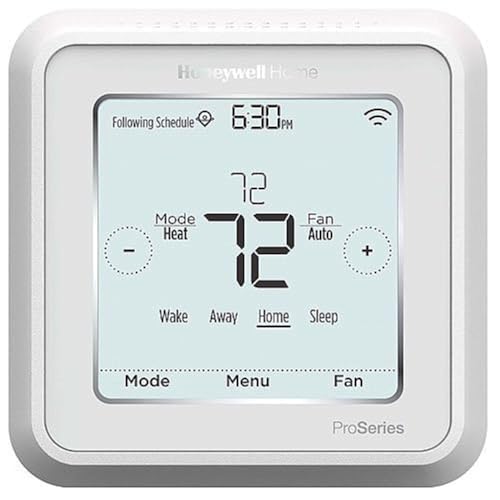
Once the wiring checks out and power is consistent, you’ll proceed directly to the on-screen setup to configure your heating, cooling, and fan preferences. Tap Mode and select either Heat or Cool. Then, use the plus and minus controls to adjust the setpoint temperature—the desired comfort level. A corresponding icon, such as a flame for Heat or a snowflake for Cool, confirms the setting. If you have a heat pump, you will also see an Emergency Heat option, which is meant for backup use only. You can also choose a fan Mode like Circ for energy-saving intermittent operation.
The interface allows you to choose your fan mode: Auto (the fan runs only during heating or cooling calls), On (fan runs continuously), or Circ (intermittent operation, about 20 minutes per hour). If the temperature reading seems inaccurate, most systems have a Temperature Calibration setting accessible in the menu—use this to fine-tune the thermostat’s sensor.
Once your selections are made, tap Done if prompted, or your choices may automatically save. Keep in mind that schedule overrides and equipment status details are accessible through the Menu area and are not part of the main setup screen.
Connect to Wi-Fi and Complete App Setup With Smart Home Integration
To connect your thermostat to Wi-Fi and complete app setup, start by ensuring your thermostat is wired correctly and configured. Then, open the thermostat menu and select WiFi. Enable the WiFi feature, choose your 2.4 GHz network from the list, and enter your Wi-Fi password. Wait for the success message to confirm the connection. Remember, your Wi-Fi security settings must match your router’s, and only 2.4 GHz networks are supported for this setup. If the thermostat displays an offline alert, tap “Reconnect” in the app to access the reconnection FAQ for detailed instructions. Consider that smart thermostat pros include energy savings and remote control convenience. Reviewing the air cleaner vs humidifier comparison can help you decide on complementary devices for your space. For maintaining ideal humidity, you might also consider building a DIY humidifier filter using common household materials.
Next, download the Honeywell Home app and select your thermostat model. Follow the on-screen prompts to proceed. The app will verify that your thermostat is connected to the network before moving forward. You will need to register your device using its MAC ID and CRC code, which allows remote access. Once registered, customize your thermostat by setting a schedule, adjusting preferences, and naming your device. Finish the setup by completing the Done step, and your thermostat will be ready for smart home integration and full control.

AC1300 Dual Band Wi-Fi Adapter for PC, Desktop and Laptop. Archer T3U provides 2.4G/5G strong high speed connection throughout your house.

AC600 Nano size wireless Dual band USB Wi-Fi adapter for fast and high speed Wi-Fi connection.

Fast 1300Mbps USB WiFi Adapter - Nineplus wifi adapter provides long-range and stable wifi connections,Upgrade your desktop or laptop wifi Technology with our AC1300Mbps usb wireless Adapter. Whether your desktop pc's wifi usb is malfunctioning or you’re looking to upgrade to faster dual-band 5GHz and 2.4GHz speeds, this pc wifi adapter is the ideal choice. It’s a budget-friendly way to extend your device’s life and experience the benefits of modern WiFi technology
Link Your Honeywell Thermostat to Apple HomeKit or Resideo Pro (Optional)
To link your Honeywell thermostat to Apple HomeKit or Resideo Pro, your model must support HomeKit natively. Only select thermostats—such as the second-generation Lyric Round Wi‑Fi, T9, and T10—offer this feature. You can verify compatibility by checking your model number on Honeywell’s website.
For native HomeKit pairing, start by installing your thermostat and connecting it to Wi‑Fi. Open the Apple Home app, tap Add Accessory, then scan the QR code or HomeKit setup code displayed on your thermostat’s screen after selecting Connect HomeKit from its menu. Ensure your Apple device is signed into iCloud with iCloud Drive and Keychain enabled. Also, the Lyric app requires permission for Home Data. Once paired, your thermostat can be controlled via Siri and integrated into Apple Home routines. Ensure a stable Wi-Fi connection during setup to prevent pairing errors.
If your thermostat doesn’t support HomeKit natively, you can either use the Resideo app for alternative setup instructions or set up a Homebridge bridge for software-based integration.